Build Your Backrooms Controls
Movement, build mode, camera, and platform tips for PC, mobile, and console players.
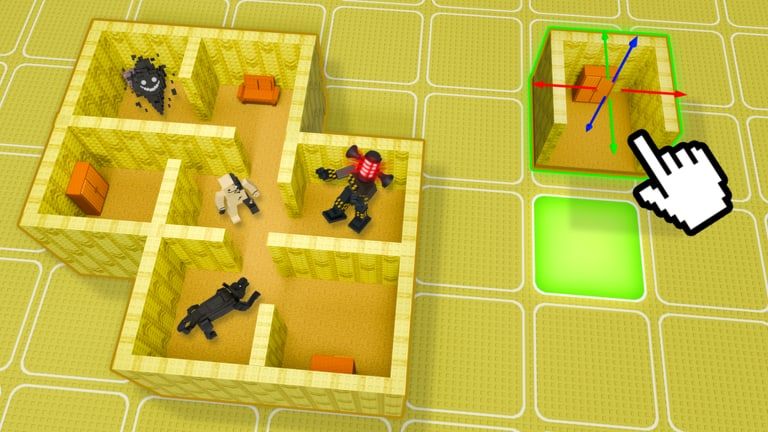
Comfortable controls make every other guide faster to apply. Build Your Backrooms uses standard Roblox movement for exploring mazes — yours or someone else’s — plus a separate build interface for placing hallways, rooms, and monsters on your plot. Wind Sun Moon [WSM] follows typical Roblox cross-platform defaults, but small UI differences between PC, mobile, and console can slow your first session if you skip this page.
Use this reference alongside Getting Started when you first join, then revisit when a patch moves buttons — check Updates Hub after major updates.
PC controls (keyboard and mouse)
Movement and camera
| Action | Default input |
|---|---|
| Move | W A S D |
| Jump | Space |
| Sprint | Shift (hold) |
| Camera rotate | Hold right mouse button + move mouse |
| Zoom | Mouse scroll wheel |
Roblox global binds apply first. If keys feel wrong, open Roblox Settings → Keyboard and confirm nothing conflicts with other experiences you play.
Build and interact
| Action | Typical input |
|---|---|
| Select build piece | Left click on UI icon, then click grid |
| Rotate piece | R or on-screen rotate arrow (varies by patch) |
| Confirm placement | Left click on valid tile |
| Cancel placement | Esc or right click |
| Open menus | Click sidebar icons (Build, Shop, Monsters, Codes) |
Exact labels shift when Wind Sun Moon [WSM] updates UI skin — if R stops rotating, look for a circular arrow on the build HUD.
Tips for maze testing on PC
- Sprint your own layout after each edit — matches how visitors try to escape in How to Catch Players.
- Lower mouse sensitivity slightly for tight corner jumps in narrow hall segments from How to Build a Maze.
- Use third-person camera for build overview; first-person when judging visitor sight lines.
Mobile controls (touch)
Mobile Roblox uses on-screen sticks and buttons. Build Your Backrooms adds extra icons around the plot edge.
Movement
- Virtual joystick (left side) — Walk and steer.
- Jump button (right) — Clear low obstacles if any exist on your plot version.
- Sprint — Often a separate button or double-tap forward depending on Roblox mobile settings.
Camera
- Drag one finger on empty screen to rotate view.
- Pinch to zoom where supported.
Building on touch
- Tap Build icon → select hallway or room → tap grid cell.
- Use Rotate button before confirming — mobile has no keyboard
R. - Mis-taps are common; zoom in before placing expensive pieces.
Mobile-specific advice
- Play on Wi-Fi when publishing large edits to avoid desync.
- Disable auto-brightness if you cannot see dim hallways during explore mode.
- Paste promo codes from clipboard when How to Redeem Codes lists active strings — typing long codes on phone is error-prone.
Console controls (Xbox and PlayStation)
Console uses Roblox’s gamepad template:
| Action | Xbox | PlayStation |
|---|---|---|
| Move | Left stick | Left stick |
| Camera | Right stick | Right stick |
| Jump | A | Cross |
| Sprint | Often L3 click | Often L3 click |
| Menu / select | B / Y varies by focus | Circle / Triangle varies |
Build mode maps piece selection to shoulder buttons or radial menus — read on-screen prompts the first time you open the builder on console.
Console players benefit from visiting PC friends’ servers to compare maze difficulty before publishing their own.
Build mode vs. explore mode
Build mode — Available on your plot when the game grants edit rights. Shows grid snaps, piece catalog, and monster deploy tools. You cannot always sprint freely through walls; respect collision while testing.
Explore mode — Standard Roblox locomotion through finished hallways. Used when visiting other mazes or when friends run your layout. No build icons should appear unless you re-enter edit state.
Switching modes incorrectly leaves half-placed pieces invisible to visitors — always confirm publish/save prompts before inviting testers from six-player sessions.
Monster placement controls
Monster deployment usually mirrors build placement:
- Open Monsters or Deploy panel.
- Select owned catcher.
- Tap valid floor tile along hallways.
- Confirm; some monsters show range preview — use it per How to Catch Players.
To move or replace, select edit tool or pick up monster if the game supports relocation — selling/refunding rules vary; test on cheap catchers first.
Camera tricks for builders
- Top-down angle — Easier grid alignment for long corridors.
- Low angle — See whether visitors spot monsters too early around corners.
- Follow a friend — Watch their camera panics during live tests.
Accessibility and settings
Roblox account settings control:
- Shift lock — Helps keyboard players on narrow ledges.
- Graphics mode — Lower on mobile reduces heat during long build sessions.
- Language — UI language follows Roblox client; wiki guides are available in multiple locales from the header switcher.
Build Your Backrooms does not require voice chat to progress.
Controls and earning
Smooth movement helps you test routes faster, which raises How to Earn Cash indirectly. Offline systems from Offline Earnings do not need input while away — but you need comfortable build controls to place monsters before logging off.
Optional Codes Hub redemption uses the same menu buttons as shop — no special control bind.
After patches
When Wind Sun Moon [WSM] ships updates, controls rarely change wholesale but UI icons move. If a bind stops working:
- Read Updates Hub patch notes.
- Rejoin a fresh server — cached UI breaks old buttons.
- Ask in official group posts before assuming a bug.
Master movement first, then build speed follows — every maze guide on this wiki assumes you can walk, sprint, and place tiles without fighting the interface.
Frequently Asked Questions
Quick answers for maze builders and explorers.
What are the PC movement keys in Build Your Backrooms?
Standard Roblox defaults: WASD to move, Space to jump, Shift to sprint, and right mouse drag to rotate camera.
How do I rotate build pieces on mobile?
Use the on-screen Rotate button before confirming placement. There is no keyboard R on touch devices.
Can I play Build Your Backrooms on console?
Yes. Roblox on Xbox and PlayStation supports the game with gamepad movement and on-screen build menus.
Why can I not open build mode on someone else's maze?
Edit rights apply only to your plot. Exploring others uses normal movement controls without build tools.
How do I test sprint routes like visitors?
Hold sprint and run your maze from entrance to exit after each major edit. Adjust monsters where you escape too easily.